
One of the most common hurdles for new Roblox creators is scripting. You might copy a script from a tutorial, expecting it to work, only to find it's broken. The error messages in the Output window can look like a foreign language. This is where a Large Language Model (LLM) or AI chatbot can become an invaluable tool.
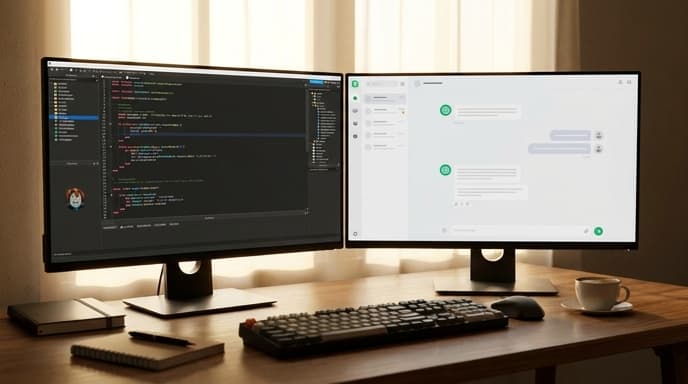
Instead of just asking the AI to 'fix the code,' you can use it to learn why the code is broken. This guide will teach you a simple workflow to turn confusing errors into clear solutions and level up your scripting skills in the process.
Step 1: Locate the Error Message
Before you can ask for help, you need to know what the problem is. In Roblox Studio, the key to this is the Output window. If it's not visible, you can open it from the 'View' tab at the top of the screen.
When a script has an error, a message will appear in this window, usually in red. This message is critical. It often contains:
- The name of the script and the line number where the error occurred.
- A brief description of the error, such as 'attempt to index nil with...' or 'is not a valid member of...'.
Select and copy the entire error message. This is the first piece of information you'll give to the AI.
Step 2: Prepare Your Code and Your Prompt
An AI needs context to give a good answer. Simply pasting the error message isn't enough. You need to provide the script itself and ask a clear question. Structure your prompt to the AI like this:
- State the goal: Start by explaining what the script is supposed to do. For example, 'I have a Roblox Lua script that is supposed to make a part change color when a player touches it.'
- Provide the code: Paste the entire script. It's helpful to put it inside code blocks if the AI interface supports it, but pasting as plain text is fine too.
- Provide the error: Paste the exact error message you copied from the Output window.
- Ask a specific question: Don't just say 'fix it.' Ask questions that help you learn. Good questions include: 'Can you explain what this error message means?', 'What is causing this error in my script?', and 'How can I fix this?'
Step 3: Analyze the AI's Response
The AI will likely provide two things: a corrected version of the script and an explanation of the change. The explanation is the most important part. Read it carefully. Did it explain what 'nil' means? Did it point out a typo in a variable name? Understanding the 'why' is how you'll learn to avoid the same mistake in the future.
Common issues an AI is great at spotting include:
- Typos: Misspelling a variable name or a property like `Transparency`.
- Incorrect Paths: Referencing an object's location incorrectly (e.g., `game.Workspace.Part` when the part is somewhere else).
- 'Nil' Errors: Trying to use an object or variable that doesn't exist or hasn't been properly defined yet.
The AI might not get it right on the first try. If the explanation is confusing, ask follow-up questions like, 'Can you explain that in a simpler way?' or 'What is a 'nil value'?'
Step 4: Implement and Test the Fix
Carefully replace your old script in Roblox Studio with the corrected version provided by the AI. Don't just copy and paste blindly. Look at the lines that were changed and make sure you understand what the fix does.
Once the new script is in place, run your game and test it. Check the Output window again to see if the original error is gone. If it works, great! If a new error appears, you can repeat the process, taking the new error and the updated script back to the AI for another round of debugging.
Frequently Asked Questions
What if the AI gives me a script that still doesn't work?
This can happen. Tell the AI that the fix didn't work and provide the new error message. Sometimes it takes a few tries. You can also ask it to suggest alternative ways to achieve your original goal.
Can an AI write a whole script for me from scratch?
Yes, but it's a better learning tool for debugging. If you ask it to write a complex script, it might make assumptions that don't fit your game. It's more effective to have it help you with specific problems in code you are trying to understand.
Is using an AI for coding cheating?
No. Using AI is like having a calculator for math or a spell-checker for writing. It's a tool that helps you solve problems more efficiently and learn faster. Professional developers use AI tools every day to help them code.
Which AI is best for debugging Roblox scripts?
Most major LLMs (like those from OpenAI, Google, or Anthropic) have been trained on vast amounts of code, including Lua. Try a few and see which one gives you explanations that you find easiest to understand.
Key Takeaways
- The Output window in Roblox Studio is your starting point for debugging any script.
- Provide the AI with three things: your goal, your full script, and the exact error message.
- Ask questions that help you learn, like 'What does this error mean?' not just 'Fix my code.'
- Always read the AI's explanation to understand the 'why' behind the fix.
- Test every change thoroughly. Debugging is often a process of trial and error.
Related Reading
- Roblox Scripting Basics: Make Your First Part Change Color
- How to Use an LLM to Refactor and Improve Your Code
- Build Your First 'Obby' Stage in Roblox Studio: A Beginner's Guide