
One of the most impactful upgrades you can make to your desk setup is a monitor arm. The basic stand included with most monitors offers limited adjustment, often forcing you into a hunched posture that leads to neck, shoulder, and back pain. A monitor arm lets you effortlessly position your screen at the perfect height, depth, and angle for your body, promoting better posture and reducing strain.
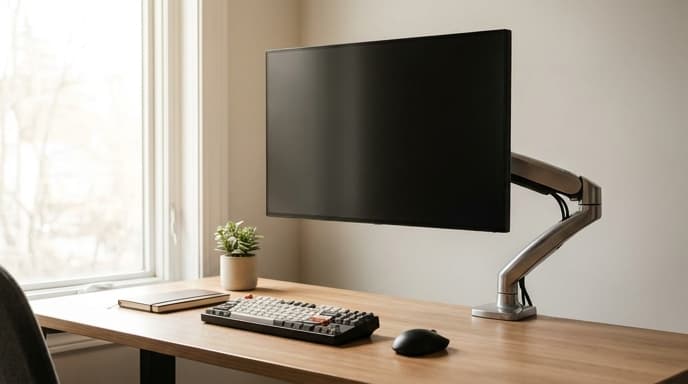
Beyond ergonomics, a monitor arm also frees up valuable desk space, giving you a cleaner, more organized workspace. But before you buy, there are a few key factors to consider to ensure you get an arm that is compatible with your monitor and desk. This guide will walk you through the essentials.
Step 1: Check for VESA Compatibility
The most important step is to ensure your monitor can be mounted. Turn your monitor around and look for a square pattern of four screw holes on the back. This is the VESA mounting interface. The VESA standard dictates the distance between these holes.
The most common sizes for computer monitors are 75mm x 75mm and 100mm x 100mm. Nearly all monitor arms support both of these sizes. If your monitor doesn't have these holes, you may need to purchase a special VESA mount adapter, but it's best to confirm compatibility before buying an arm.
Step 2: Know Your Monitor's Weight and Size
Every monitor arm has a specified weight capacity and a maximum screen size it can support. You can find your monitor's weight (usually listed without the stand) in its product specifications online.
- Weight Capacity: This is the most critical spec. Exceeding the weight limit can cause the arm to sag or fail entirely. Always choose an arm that is rated to hold more than your monitor weighs.
- Screen Size: The size limit (e.g., 'up to 32 inches') is more of a guideline related to leverage and maneuverability. The weight capacity is the hard limit.
Step 3: Choose an Adjustment Mechanism
Monitor arms use different mechanisms to counterbalance the weight of the screen, allowing for easy adjustment.
- Gas Spring: These arms use a pressurized gas cylinder, similar to the ones in an office chair, to allow for smooth, fluid, and near-effortless adjustments. They are great if you frequently change your monitor's position (e.g., for a sit-stand desk).
- Mechanical Spring: These use a more traditional spring-and-lever system. They are very durable and reliable but may require a tool to adjust the tension when you first set them up.
Step 4: Pick Your Mounting Option
Finally, you need to attach the arm to your desk. There are two standard methods:
- C-Clamp: This is the most common option. A clamp tightens onto the edge of your desk. It's easy to install and move, but requires you to have a few inches of lip on the back of your desk.
- Grommet Mount: This method involves bolting the arm directly through a hole in your desk. Many desks come with pre-drilled grommet holes for cable management. This provides a very stable, clean installation.
Most monitor arms include hardware for both clamp and grommet mounting, giving you flexibility.
Frequently Asked Questions
How high should my monitor be?
For proper ergonomics, the top of your monitor screen should be at or slightly below your eye level when you are sitting up straight. This allows you to look straight ahead or slightly down, which is the natural resting position for your neck.
What about cable management?
Most quality monitor arms have integrated cable management channels or clips. This allows you to route your monitor's power and display cables along the arm for a clean, clutter-free look.
Can I use a monitor arm for two monitors?
Yes, dual monitor arms are widely available. They consist of a single base with two separate arms. Just be sure to check that the arm can support the combined weight and size of both of your monitors.
Key Takeaways
- Check VESA compatibility first: Look for a 75x75mm or 100x100mm screw pattern on the back of your monitor.
- Weight capacity is non-negotiable: Ensure the arm can safely support your monitor's weight.
- Gas spring arms offer smoother adjustments: They are ideal for frequent repositioning.
- Choose your mount: A C-clamp is easiest for most desks, while a grommet mount offers a cleaner look if you have a hole available.
- Position for ergonomics: The top of the screen should be at or just below eye level.
Related Reading
- Building an Ergonomic Desk Setup for Work and Play
- How to Choose an Ergonomic Gaming Chair for Health and Comfort
- The Weekly Review: A 30-Minute System for Clarity and Focus