
The daily flood of emails is a major drain on productivity. Many messages are routine, requiring a simple categorization, a standardized reply, or the extraction of a single piece of information. These are perfect tasks to delegate to an AI. By connecting a large language model to your inbox, you can build a powerful automated triage system that saves you hours of manual work.
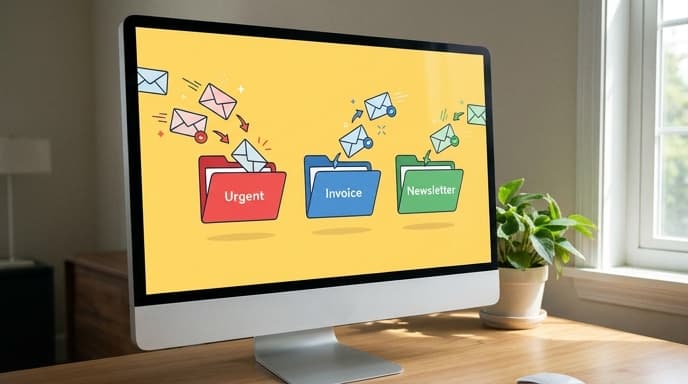
This guide will show you how to build a practical email automation workflow. We'll cover a no-code method for beginners using an automation platform, and a code-based approach for developers who want more control.
The Goal: An Automated Inbox Assistant
Our objective is to create a workflow that, for every new email, performs a three-step process without any manual intervention:
- Categorize: Read the email and assign it a category (e.g., `Sales Inquiry`, `Support Ticket`, `Invoice`, `Spam`).
- Extract & Summarize: Pull out key information (like a customer name or invoice number) and create a one-sentence summary.
- Act: Based on the category, perform an action, such as applying a label in Gmail, forwarding the email to a specific department, or drafting a reply.
The No-Code Method (Using Zapier or Make)
Automation platforms like Zapier or Make are the easiest way to get started. They provide visual interfaces to connect different apps (like Gmail and OpenAI) without writing code. The workflow, or “Zap,” would look like this:
Step 1: Trigger - New Email in Gmail.
You configure the trigger to start the workflow whenever a new email arrives in your inbox (or a specific folder).
Step 2: Action - Send to ChatGPT/LLM for Categorization.
You pass the email's subject and body to an LLM. The key is the prompt you design. For example:
“You are an email triage assistant. Read the following email and return a single category: 'Sales', 'Support', 'Billing', or 'Other'. Email: [Insert email body here]”
Step 3: Action - Logic/Paths.
Using the category returned by the LLM, you can create different paths. If the category is 'Sales', follow one set of actions. If it's 'Billing', follow another.
Step 4: Action - Apply Label, Draft Reply, etc.
For the 'Billing' path, you might have another LLM call to extract the invoice number and then a final action to apply the “Invoice” label in Gmail. For a 'Sales' inquiry, you could use the AI to draft a standardized reply and save it in your drafts folder for you to review and send.
The Code Method (A Simple Python Script)
For more flexibility and control, you can write a script in a language like Python. This involves using the APIs of your email provider and your chosen LLM. The logic remains the same.
A simplified Python script would:
- Connect to Gmail API: Use libraries like `google-api-python-client` to periodically check for new, unread emails.
- Call the LLM API: For each new email, send its content to an LLM API (like OpenAI's) with a carefully crafted prompt for categorization and data extraction. A good practice is to ask for a JSON output for easy parsing.
Prompt: “Analyze the following email. Return a JSON object with two keys: 'category' (options: Sales, Support, Billing, Other) and 'summary' (a one-sentence summary). Email: ...” - Parse the Response: Take the JSON response from the LLM.
- Execute Actions: Based on the `category` in the JSON, use the Gmail API again to apply a label, move the email, or create a draft reply.
Security and Privacy Considerations
This is the most important section. When you automate your email, you are sending your private data to a third-party AI service. Before you begin, you must consider the implications:
- Review Privacy Policies: Carefully read the privacy policies of both the automation platform (e.g., Zapier) and the AI provider (e.g., OpenAI). Understand how your data is used and stored.
- Avoid Highly Sensitive Data: Do not build this automation for inboxes that contain extremely sensitive financial, legal, or personal health information unless you are using enterprise-level services with explicit data privacy and compliance guarantees.
- Start Small: Test your workflow on a non-critical email address or with specific, low-stakes emails first.
Frequently Asked Questions (FAQ)
Will this be expensive to run?
It depends on email volume. Each email processed involves at least one API call to an LLM, which costs a small amount of money. For a personal inbox with moderate traffic, the costs are typically very low, but for a high-volume business inbox, you should monitor your API usage carefully.
How accurate is the AI's categorization?
Accuracy is generally high for well-defined categories but depends heavily on the quality of your prompt. You can improve it using few-shot prompting, where you provide the AI with a few examples of correctly categorized emails within the prompt itself.
What happens if the AI makes a mistake?
Your workflow should have a fallback. For instance, if the AI categorizes an email as 'Other' or fails to respond correctly, you can have the workflow simply apply a “Needs Review” label and stop, ensuring you don't miss anything important.
Key Takeaways
- You can automate email triage by creating a workflow that uses an LLM to categorize emails, extract data, and draft replies.
- No-code platforms like Zapier offer a user-friendly way to build this automation by connecting your email to an AI service.
- A code-based approach using Python offers more flexibility and control over the process.
- Prioritize security and privacy. Be aware that you are sending email data to third-party services and avoid using this method for highly sensitive inboxes.
- The success of your automation depends on well-crafted prompts and a solid plan for handling exceptions.
Related Reading
- How to Build a Simple AI Agent to Automate Your Digital Tasks
- How to Use Function Calling to Connect LLMs to Live Data
- Master Few-Shot Prompting to Get Better AI Results