
Most homes run on a single flat local area network. Smart TVs, cheap Wi-Fi cameras, gaming consoles, and personal banking laptops share the same broadcast domain. If an Internet of Things (IoT) device is compromised through outdated firmware, an attacker on that device can run network scans, spoof Address Resolution Protocol (ARP) tables, and probe banking hardware on the local network.
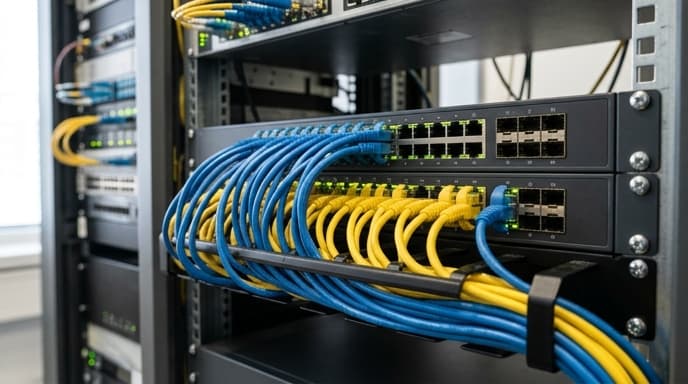
Setting up port-isolated VLANs for home banking limits lateral movement. Using an inexpensive managed switch lets you isolate your banking computer so it can reach the gateway router and the internet, while remaining unreachable to other household devices.
The Security Vulnerability of Flat Home Networks
In a flat network, ARP requests and mDNS broadcasts travel across every switch port and Wi-Fi link. A compromised device can capture broadcast packets or flood the switch's MAC address table, causing the switch to broadcast traffic across every physical port.
Many smart appliances also stop receiving firmware updates after a couple of years. When an unsupported device sits on the same subnet as your primary financial workstation, only your computer's local software firewall protects it from lateral network traffic.
Network Architecture: Setting Up Isolated Security Zones
A basic segmentation plan uses 802.1Q VLAN tags to divide network traffic:
- VLAN 10 (Management): Router admin consoles, hypervisors, and managed switch interfaces.
- VLAN 20 (Financial / Secure): Dedicated computers used for banking, brokerage accounts, and tax preparation.
- VLAN 30 (IoT / Untrusted): Smart home hubs, streaming sticks, smart TVs, and game consoles.
Managed switches also offer Port Isolation (or Private VLANs). This setting stops devices on the same VLAN from talking to each other, forcing all traffic to flow directly to the upstream router gateway.
Step-by-Step Managed Switch VLAN Configuration
- Log in to your managed switch: Connect an Ethernet cable directly from your computer to the switch, open a browser, and enter the switch's default management IP.
- Create your VLAN IDs: Go to the 802.1Q settings. Add
VLAN 20(labeled SECURE_BANK) andVLAN 30(labeled IOT_UNTRUSTED). - Assign Port PVIDs: Set the Port VLAN ID (PVID) for your banking computer's switch port to
20as an Untagged access port. Set the ports for smart devices to PVID30as Untagged access ports. - Configure the Trunk Port: Set the port connected to your router as a Tagged Trunk Port carrying VLAN 20 and VLAN 30.
- Enforce Router Firewall Rules: In your router settings, create a firewall rule that drops all traffic originating from VLAN 30 destined for VLAN 20. Smart devices can still access the internet, but cannot initiate connections to your banking workstation.
FAQ
Do I need an enterprise-grade switch to do this?
No. Basic 5-port and 8-port managed switches with 802.1Q support typically cost between $30 and $50. Enterprise hardware is not required for basic home VLAN segmentation.
Can I isolate my banking laptop if it connects over Wi-Fi?
Yes, if your wireless access point supports multiple SSIDs mapped to VLANs. Create a dedicated Wi-Fi network for financial tasks and bind that SSID directly to VLAN 20.
What happens if I try to print a tax statement on my home network?
If your printer sits on the IoT network (VLAN 30), a banking computer on VLAN 20 cannot discover it through broadcast protocols. You will need to add a router firewall rule allowing connections from your computer to the printer's specific IP address, or connect the printer directly with a USB cable.
Key Takeaways
- Flat home networks allow compromised smart devices to inspect traffic and scan computers on the same subnet.
- Port-isolated VLANs separate network traffic at the switch level, preventing lateral movement.
- Use untagged access ports for individual devices and a tagged trunk port for the uplink to your router.
- Block traffic from the IoT network to the secure network at the router firewall.
- Direct USB printing avoids routing sensitive documents through an untrusted local network.
Related Reading
- Configuring WireGuard Micro-Tunnels to Secure Online Banking Connections
- Workstation Compartmentalization: Running Financial Accounts in Isolated Virtual Machines
- Configuring Browser Profile Isolation Exclusively for Online Banking