
When traveling, keeping a phone charged is necessary for authenticating bank logins and approving payments. However, plugging directly into public USB-A or USB-C charging stations in airports or hotels introduces physical security risks. Because standard USB cables carry both power and data on adjacent pins, untrusted ports can attempt automated data connections while your device charges.
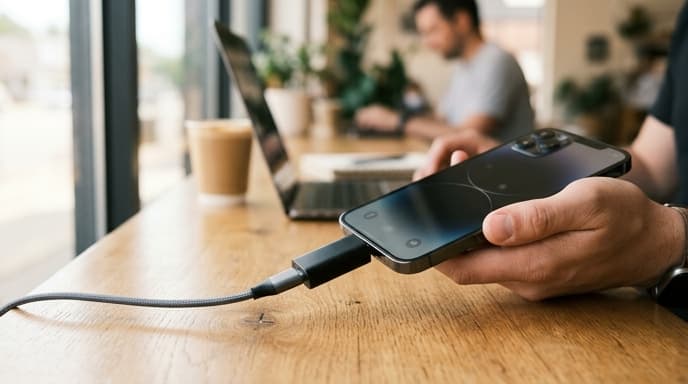
Using USB data blockers for banking devices stops data transfers at the physical layer. By severing the communication pins inside the adapter, these devices deliver power to your battery while keeping data lines disconnected.
The Physical Pinout Mechanics of USB Interfaces
A standard USB-A connector uses four physical pins: Pin 1 supplies 5-volt DC power (+VBUS), Pin 4 connects to electrical ground (GND), and Pin 2 and Pin 3 handle data (Data Minus and Data Plus). Establishing a data link requires active communication across both data pins.
A compromised public charging port can hide an automated microcomputer behind the wall plate. When you plug in a standard four-conductor cable, the computer can initiate a file transfer or trigger host pairing requests. Tapping through a prompt without reading it can expose local files, system logs, or authentication tokens to the connected device.
How Hardware USB Data Blockers Work
A USB data blocker is a small adapter placed between your charging cable and the public port. It operates on basic physical principles:
- Power Continuity: The +VBUS and GND lines pass directly through to deliver charging current.
- Physical Data Isolation: The internal pins and traces for the D+ and D- lines are physically omitted or severed during manufacturing.
- Smart Charge Emulation: Many blockers include a small circuit on the device side that bridges the data lines or signals basic USB battery charging specifications (BC1.2), allowing the device to draw power safely without needing an active data handshake from the host.
How to Test Your Data Blocker for True Physical Isolation
Verify that your data blocker works before using it in public:
- Connect your phone to your computer: Use your standard cable. The operating system should detect the phone, mount storage volumes, or trigger a connection alert.
- Insert the data blocker: Unplug the cable, attach the data blocker to the host end, and plug it back into the computer.
- Verify device behavior: The phone should indicate that it is charging. Open your computer's device manager or system profiler; the phone should not appear in USB, storage, or mobile device lists.
- Inspect data transfer: Try copying a file or running a developer tool like
adb devices. The computer should report no connected devices, confirming that data lines are severed.
FAQ
Does a USB data blocker slow down fast-charging protocols?
It can. Protocols such as USB Power Delivery (USB-PD) and Qualcomm Quick Charge use data lines to negotiate voltages higher than 5 volts. Basic data blockers restrict charging to standard 5V rates. Specialized USB-C blockers include microcontrollers that negotiate higher charging voltages safely while blocking standard data transfer.
Why not just turn the phone off while charging in public?
Some phones automatically power on or enter a low-level maintenance mode when connected to a live charger. A data blocker ensures the data pins remain physically disconnected even if the phone turns on.
Are software "charge-only" toggles in phone settings sufficient?
Software settings help, but they depend on the operating system kernel handling the connection securely. A physical data blocker eliminates driver vulnerabilities and OS bugs by removing the physical connection entirely.
Key Takeaways
- USB cables carry power and data over separate pins within the same connector.
- Public USB charging ports can run automated data collection scripts or trigger device pairing.
- USB data blockers for banking devices physically sever the D+ and D- pins to prevent data transmission.
- Quality data blockers include circuits that negotiate basic charging current without data access.
- Test new blockers on a home computer to ensure no data link is established.
Related Reading
- Biometric App Locks on Mobile Banking: Device Passcode vs. Secure Hardware
- Hardware Security Modules vs StrongBox: How Modern Phones Store Banking Keys
- Configuring Port-Isolated VLANs on Managed Switches for Home Banking Workstations