
For digital nomads and remote workers, the world is your office. But that convenience comes with a risk: public Wi-Fi networks in cafes, airports, and hotels are notoriously insecure. A few simple precautions can protect your sensitive data from prying eyes and keep your digital life secure.
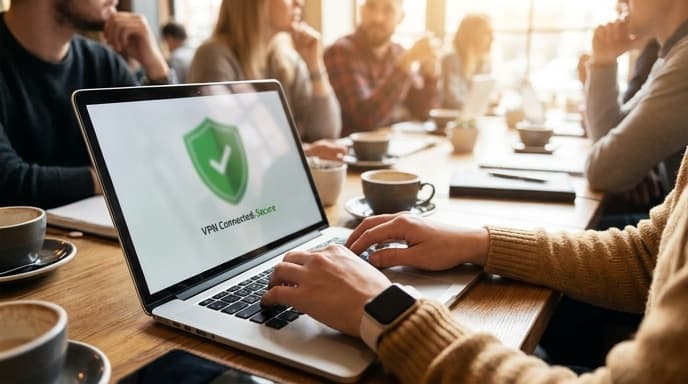
Think of using public Wi-Fi like having a conversation in a crowded room. Anyone can potentially overhear what you're saying. Without protection, your passwords, financial information, and private messages could be intercepted. This checklist provides the essential layers of security you need to work safely from anywhere.
The Essential Public Wi-Fi Security Checklist
Follow these steps every time you connect to a network you don't control. It might seem like a lot at first, but it quickly becomes a fast, automatic routine.
1. Use a Virtual Private Network (VPN)
If you only do one thing on this list, make it this one. A VPN creates an encrypted tunnel between your device and the internet. This means that even if someone is monitoring the network, all they will see is scrambled data. It’s the single most effective tool for public Wi-Fi security.
- How to do it: Subscribe to a reputable VPN service, install the app on your laptop and phone, and turn it on before you do anything else on the public network.
2. Ensure Your Firewall is Enabled
Your computer's operating system has a built-in firewall that acts as a barrier, preventing unauthorized access to your device. It’s usually on by default, but it's worth checking.
- How to do it: On macOS, go to System Settings > Network > Firewall. On Windows, search for 'Windows Defender Firewall' in the Start Menu. Make sure it is turned on.
3. Stick to HTTPS Websites
Modern browsers make this easy, but it's a critical habit. The 'S' in HTTPS stands for 'Secure' and means the connection between your browser and the website is encrypted. Most legitimate websites use HTTPS today. If you see a 'Not Secure' warning in your browser's address bar, do not enter any sensitive information on that site.
4. Turn Off Sharing
Your device might be configured to share files or printers over a network. This is great for your home or office, but on a public network, it can expose your files. Set your network profile to 'Public' to automatically lock this down.
- How to do it: When you first connect to a new network, Windows will ask if it's a public or private network. Always choose 'Public'. On macOS, you can manage sharing settings in System Settings > General > Sharing.
5. Enable Two-Factor Authentication (2FA)
2FA adds a second layer of security to your accounts. Even if a thief steals your password, they won't be able to log in without access to your second factor (usually a code sent to your phone). Enable it for all critical accounts: email, banking, and social media.
FAQ: Digital Nomad Security
Is hotel Wi-Fi safer than cafe Wi-Fi?
Not necessarily. Even if it requires a password, it's still a public network used by many people. You should apply the same security measures to hotel Wi-Fi as you would to any other public network.
Can I just use my phone's hotspot instead?
Yes, using your phone as a personal hotspot is generally much more secure than using public Wi-Fi. The connection is direct and encrypted. This is a great option if you have enough mobile data and are handling highly sensitive information.
Are all VPNs the same?
No. Avoid free VPNs, as they often have questionable privacy policies or slow speeds. Choose a well-regarded, paid VPN service that has a strict no-logs policy, meaning they don't track your online activity.
Key Takeaways
- Treat all public Wi-Fi networks, including those in hotels, as insecure.
- A VPN is the most important tool for encrypting your data and protecting your privacy.
- Ensure your device's firewall is turned on and your network sharing settings are set to 'Public'.
- Only enter sensitive information on websites that use HTTPS.
- Enable Two-Factor Authentication (2FA) on all your important online accounts.
- Using your phone's hotspot is a more secure alternative to public Wi-Fi.
Related Reading
- How to Create an Ergonomic Workspace in Any Hotel Room or Cafe
- A Framework for Structuring Your Day When Working Across Time Zones
- The 20-Minute Mental Reset Protocol for Business Travelers